Select CHES staff members can create and manage Zoom sessions for external facing events such as webinars, masterclasses and information sessions. To create a Zoom session, please follow the steps below.
Step 1
Open the Zoom app on your device and log in with your CHES account
Step 2
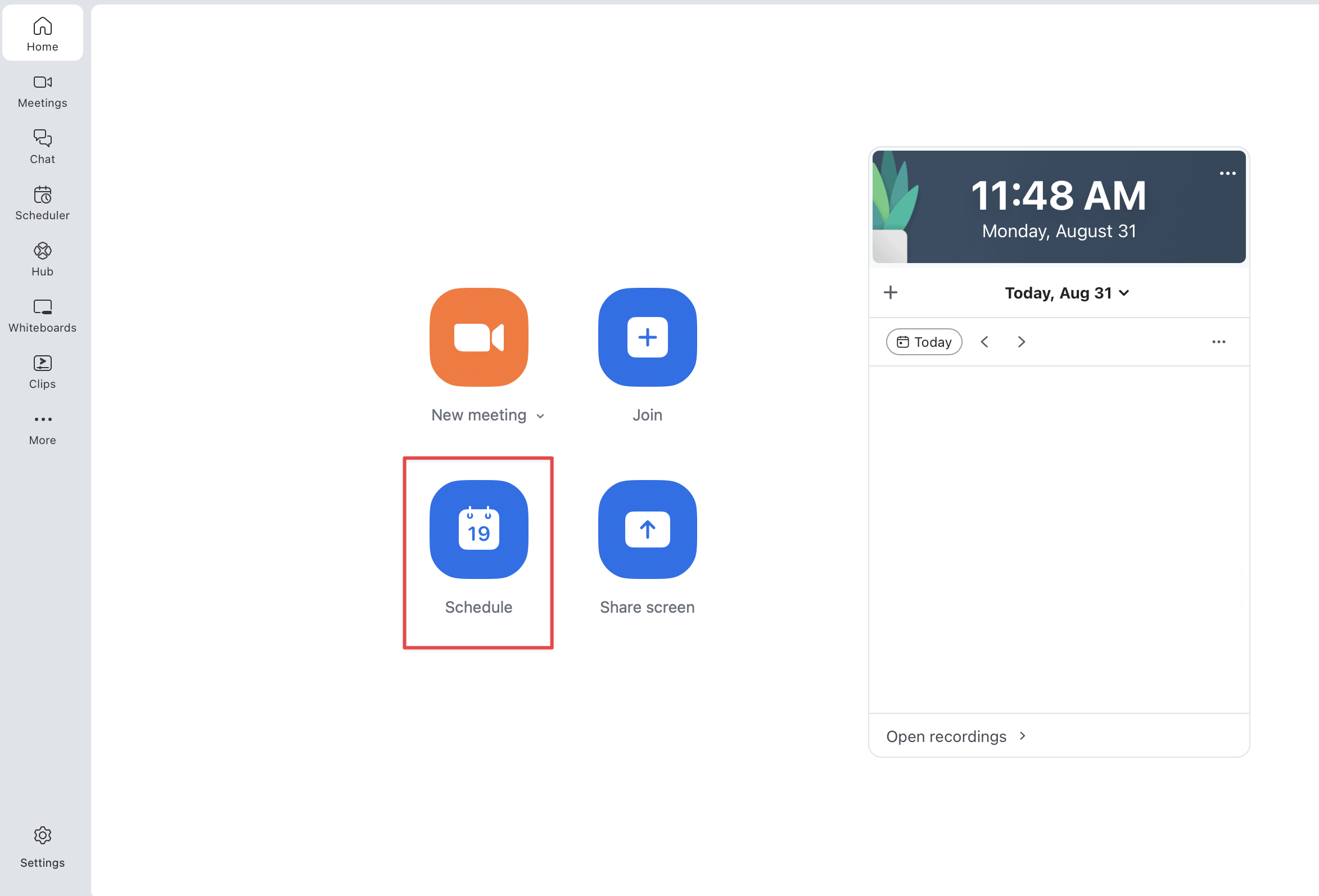
On the home page of the Zoom app, click Schedule
Step 3
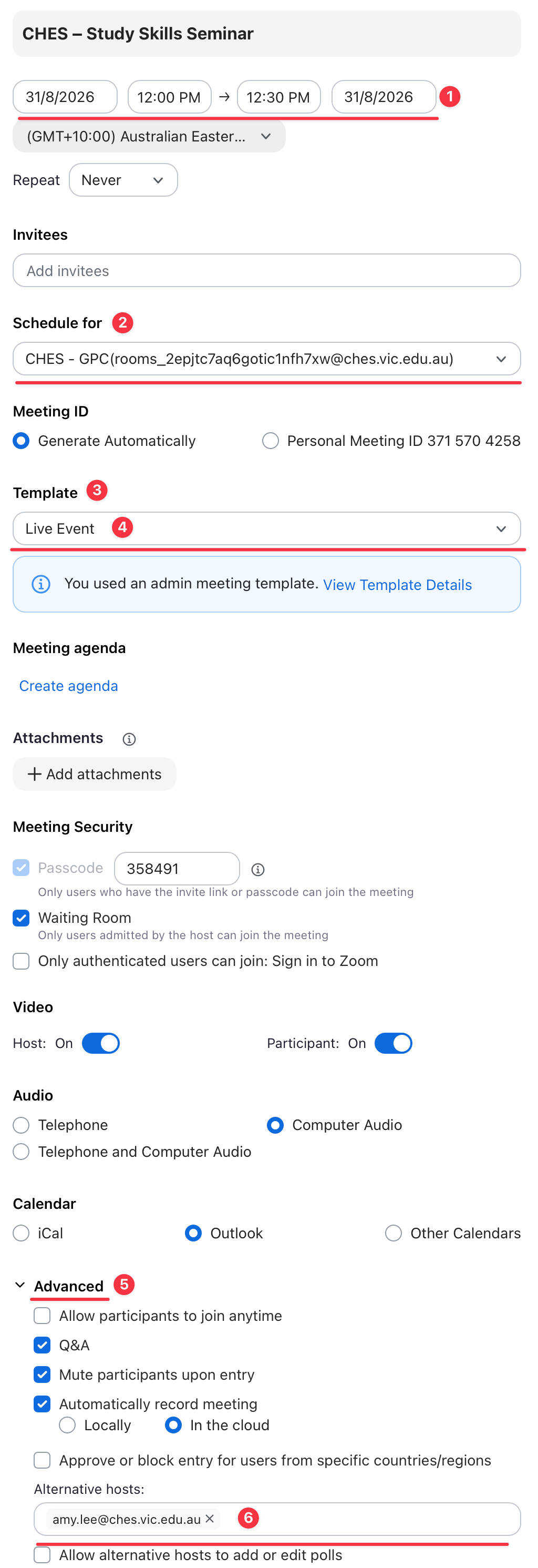
A new window will pop up with a number of options and settings. Please fill out the following:
- Date and time of the Zoom session
- Schedule For - The host of the Zoom session (either yourself or a CHES Zoom Room)
- Template - Always select 'Live Event' for most settings to be applied automatically
- Expand the Advanced settings and enter any alternative hosts (co-hosts). Note that only CHES staff can be an assigned co-host permission at this stage. If you want to make a non-CHES staff member a co-host, you will need to do this after they join the session.
Step 4
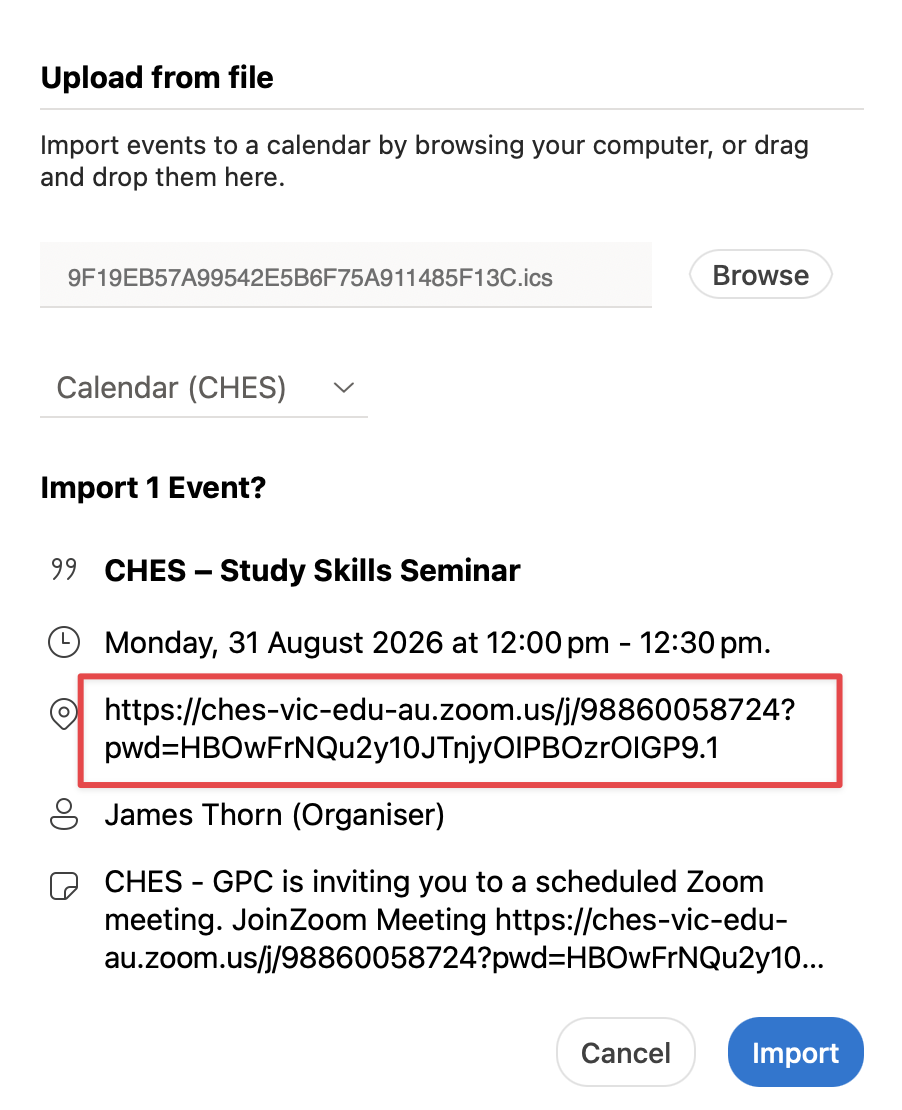
Once you have created the Zoom session, you will see another pop up with the Zoom link. Please copy this link and send to anyone who needs it. You can also use this pop up to add it to your calendar.
Step 5
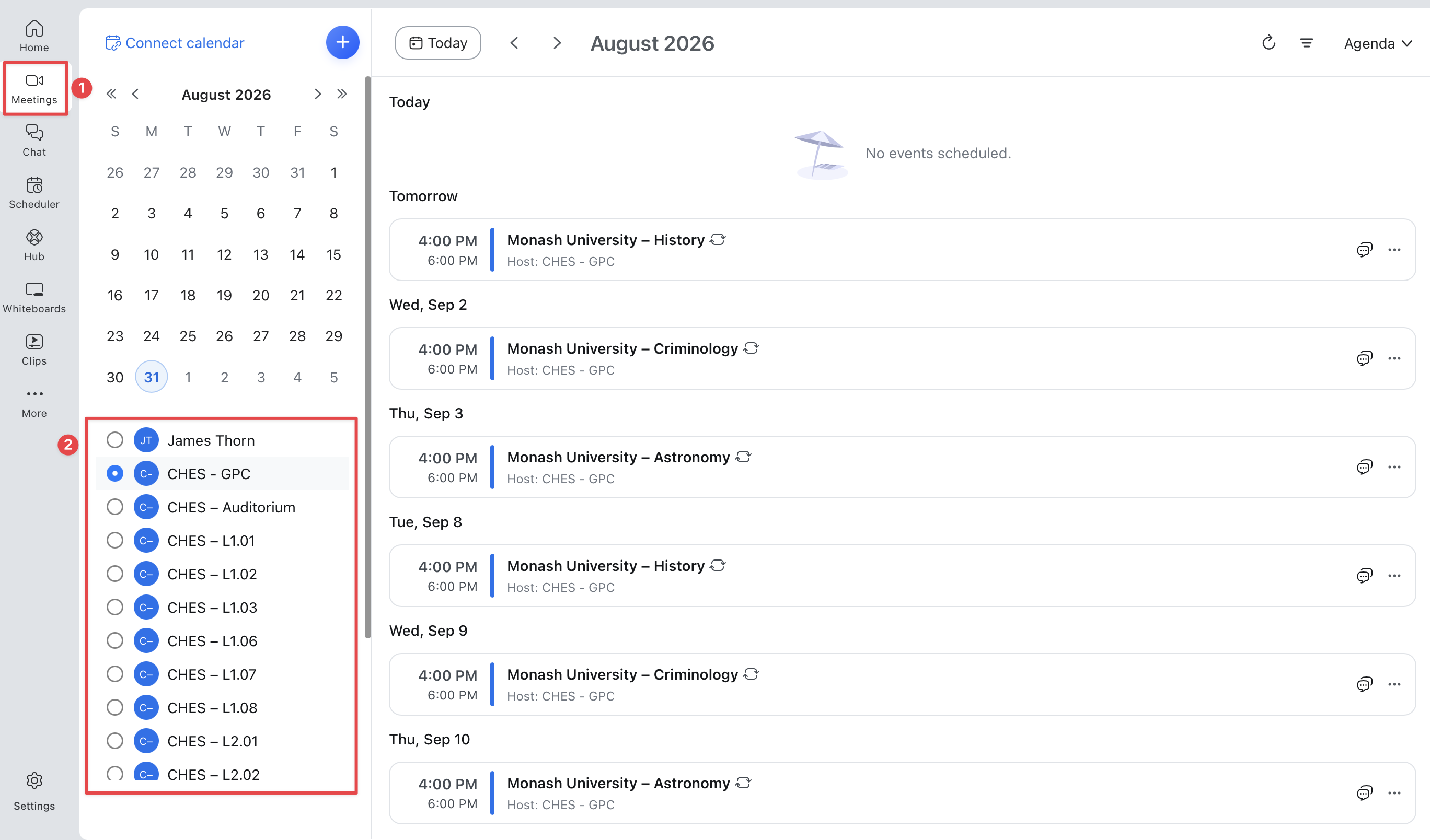
To manage an existing Zoom session, click on the Meetings button on the left hand side of your Zoom app and select the Zoom Room that is hosting the session. From there, you can see and manage the session.
Was this article helpful?
That’s Great!
Thank you for your feedback
Sorry! We couldn't be helpful
Thank you for your feedback
Feedback sent
We appreciate your effort and will try to fix the article