Class for Teams now stores all class recordings within Class itself. This means students can easily find the session recordings after each lesson.
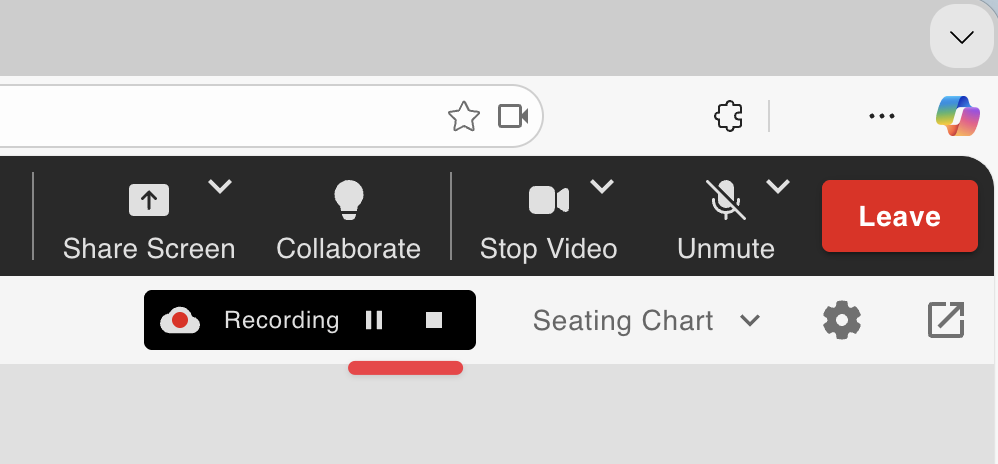
When you start a recording in Class, a recording pop-up window will appear with Pause and Stop buttons. If you pause a recording and then resume it, it will combine these two recording periods into a single recording. If you stop a recording and then start again, it will create two separate recordings.
After a Class session is ended, the video will take a short amount of time to process before being available to students. This should take no more than 10-15 minutes, but will vary depending on the length of the recording.
Once the recording is available, students and teachers can find it under the Recordings tab of the session in the Class Schedule.
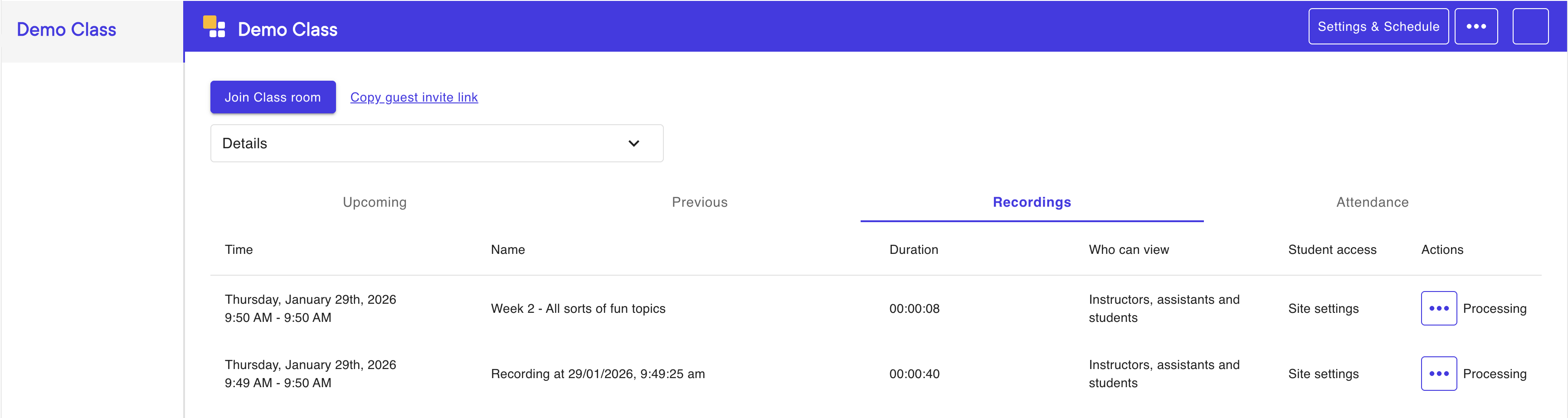
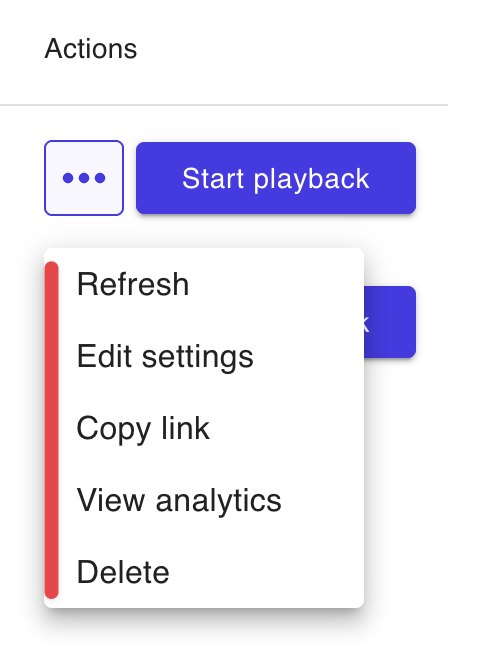
As the teacher, you can click on the three dots at the end of each row to access some options.
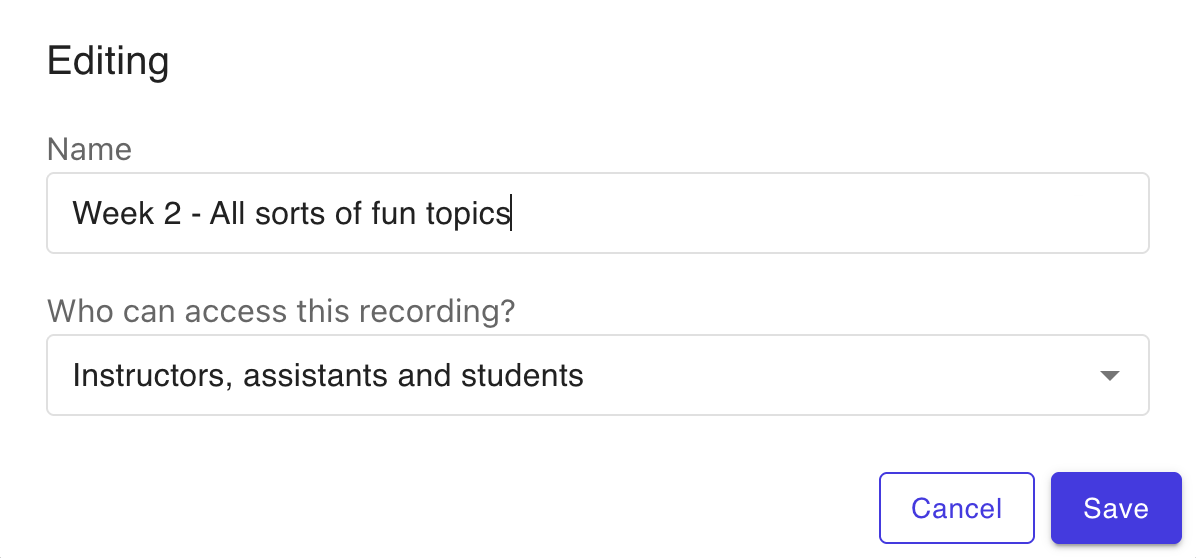
If you click Edit Settings, you can give the recording a descriptive name so the students can see what the video contains, in addition to the date/time of the recording.
Was this article helpful?
That’s Great!
Thank you for your feedback
Sorry! We couldn't be helpful
Thank you for your feedback
Feedback sent
We appreciate your effort and will try to fix the article