This user guide shows you how to create a dedicated browser profile for CHES work. Using a separate profile keeps your CHES bookmarks, browsing history and saved sign-ins together, while keeping them separate from your base school or personal browsing.
- Open Google Chrome

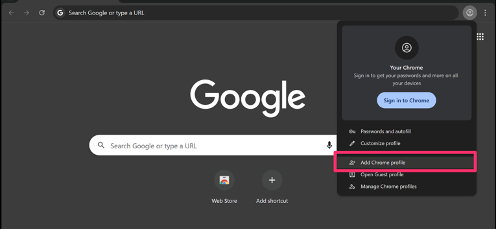
- Click the profile icon (top right corner)

- Select
"Add" (or "Add new profile")
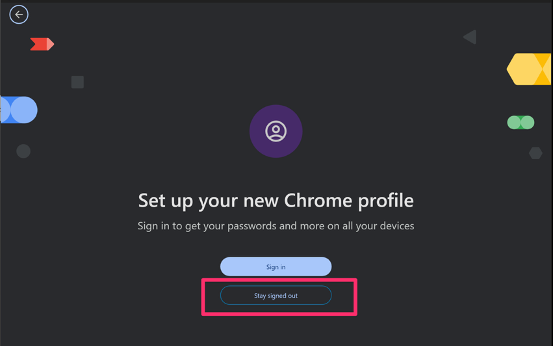
- Click
"Continue without an account"
(or "Stay sign out" depending on version)
Name the profile
→ e.g. CHES
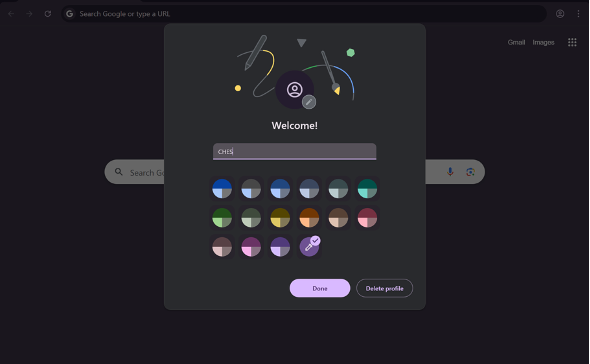
Choose an icon (optional) and click Done
Was this article helpful?
That’s Great!
Thank you for your feedback
Sorry! We couldn't be helpful
Thank you for your feedback
Feedback sent
We appreciate your effort and will try to fix the article