Step 1
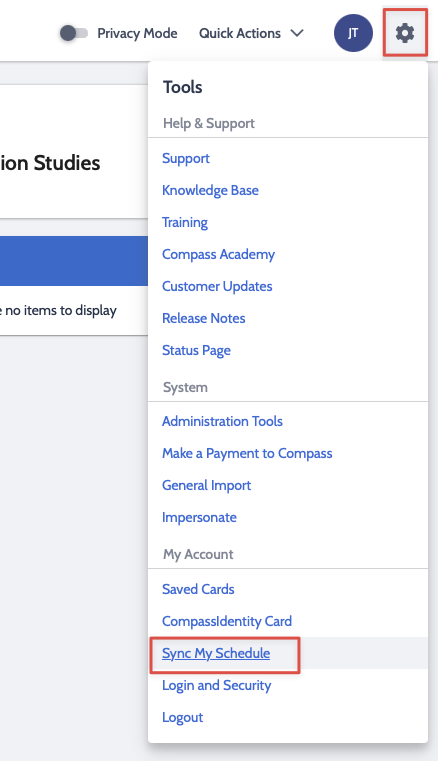
Log into Compass, click on the gear in the top right corner and click Sync My Schedule
Step 2
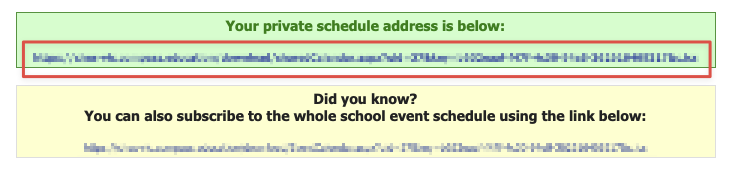
Scroll down and click on the link in the green Private Schedule box. This will download a file to your computer
Step 3
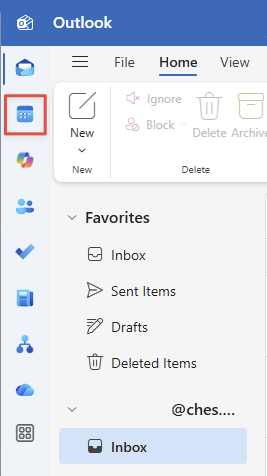
Open Outlook and click on the Calendar icon
Step 4
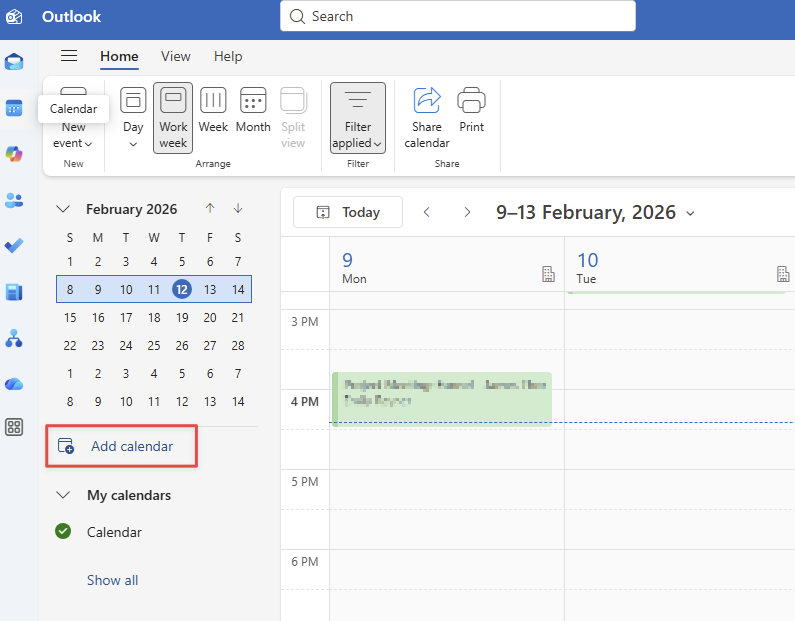
Click Add Calendar
Step 5
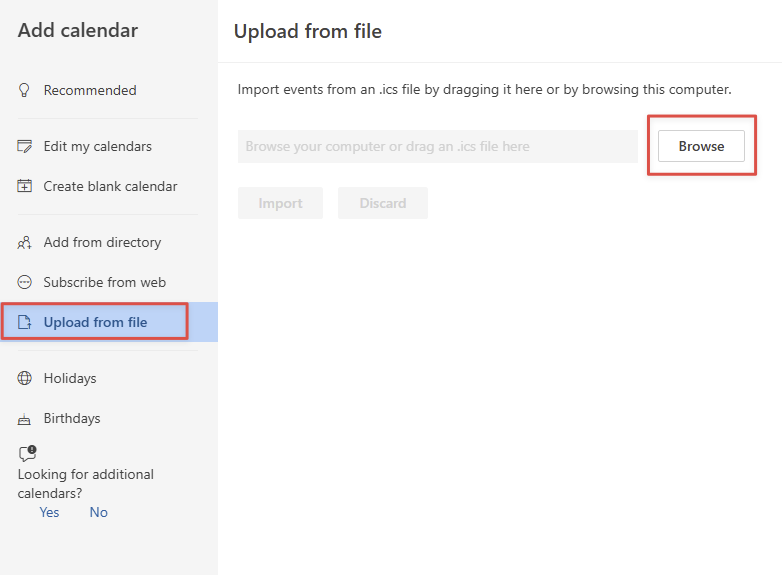
Click Upload From File and then Browse
Step 6
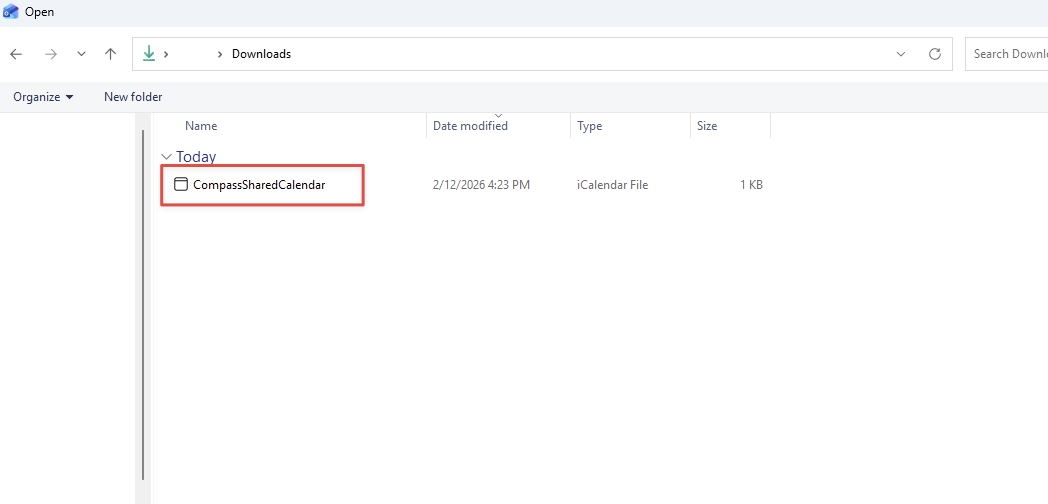
Go to your Downloads folder and select the 'CompassSharedCalendar' file that was just downloaded
Step 7
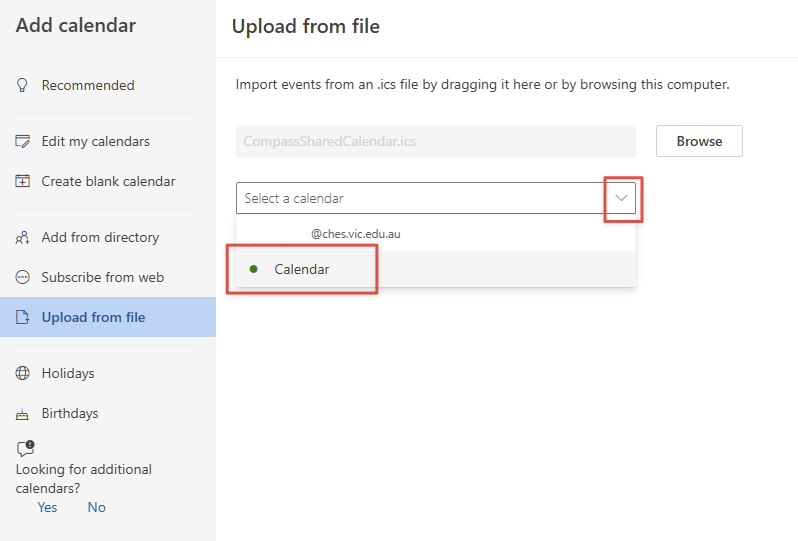
Select the calendar you want to import to. This should be the one called 'Calendar' under your CHES email address
Your Compass calendar entries will now appear on your calendar. Remember this is a one time import and any future changes in Compass will not be reflected in your Outlook calendar.
Was this article helpful?
That’s Great!
Thank you for your feedback
Sorry! We couldn't be helpful
Thank you for your feedback
Feedback sent
We appreciate your effort and will try to fix the article